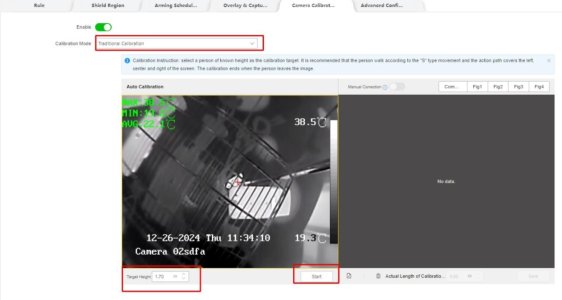
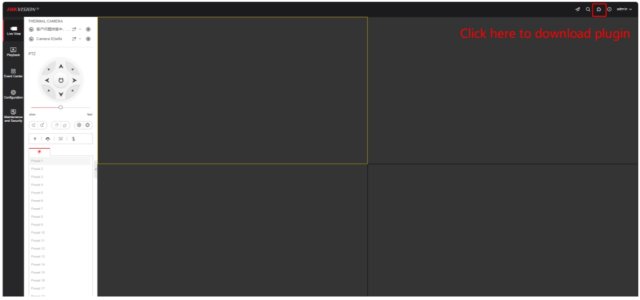
Accessing the Camera Web Interface
- Enter the device’s IP address in a web browser to open the login page.
- Enter your username and password, then click Login to access the camera web interface.
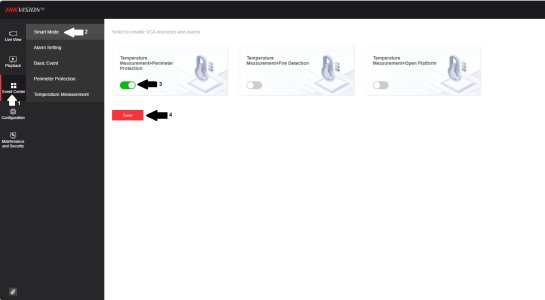
VCA Resource Configuration
- Go to Configuration → System → VCA Resource.
- Ensure VCA Resource Type is set to:
Temperature Measurement + Perimeter Protection
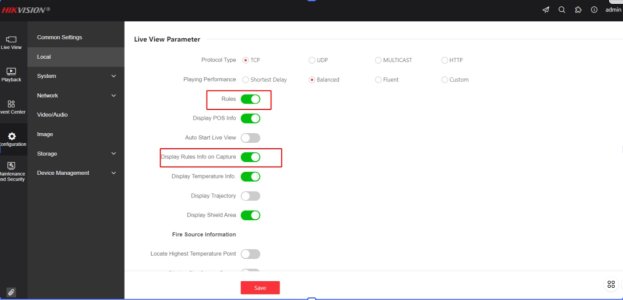
Enable VCA Information in Live View
- Navigate to Configuration → Local.
- Under Live View Parameters:
- Enable Rules
- Enable Display Rules Info on Capture
- Enable Rules
- Click Save
Perimeter Protection Configuration (HeatPro Series)
Note: Thermal cameras are divided into HeatPro and non-HeatPro series.This guide applies to HeatPro series only.
Enable Perimeter Protection
- Go to Event Center → Perimeter Protection.
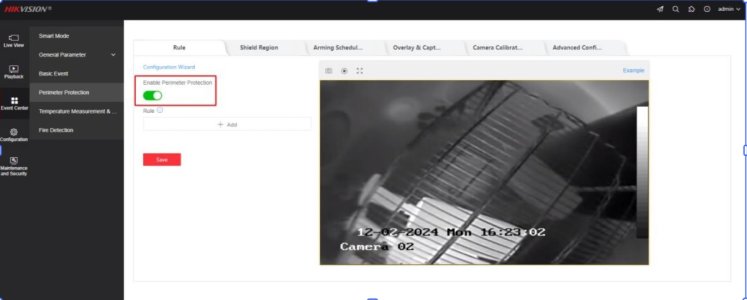
Create Perimeter Protection Rules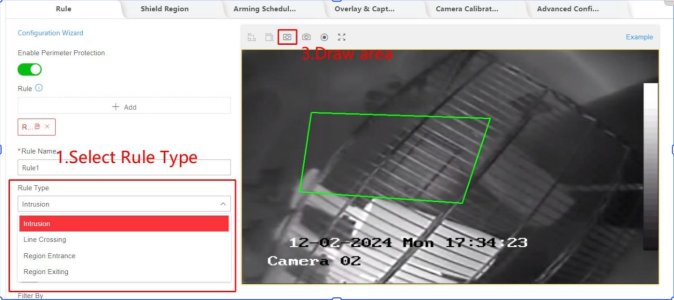
- Click Add Rule
- Configure:
- Rule Name
- Rule Type:
- Intrusion
- Line Crossing
- Region Entrance
- Region Exiting
- Intrusion
- Rule Name
- Draw the rule area using a line or polygon, depending on the rule type.
- Set Detection Target as required.
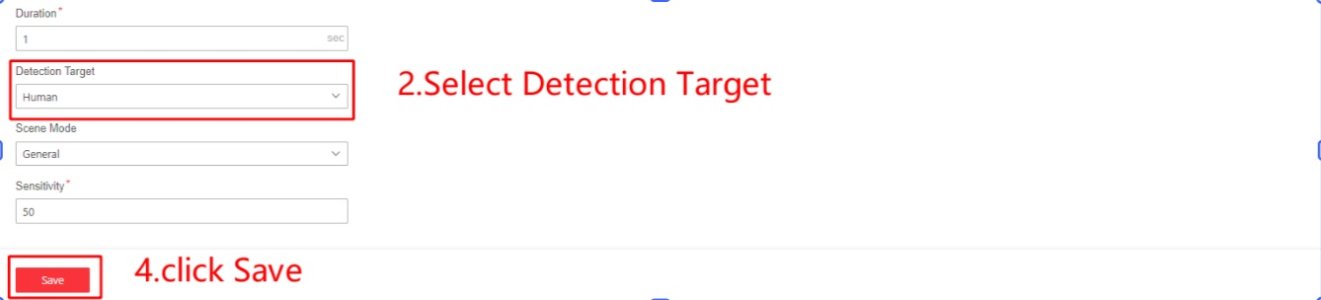
- Draw Minimum and Maximum Size filters based on expected target size.
- Click Save
For each rule created, always configure Min and Max size filters to reduce false alarms.
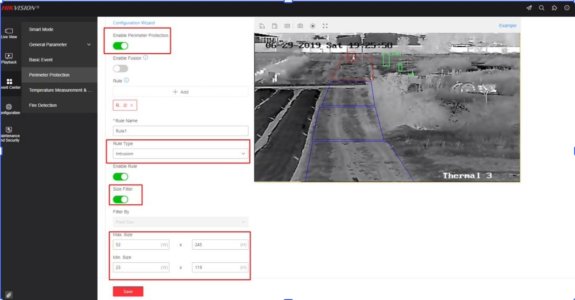
Complex Detection Scenarios (Recommended Approach)
For challenging scenes (e.g. Intrusion or Line Crossing with variable target distances):- Create 3 or more rules
This significantly improves detection accuracy.
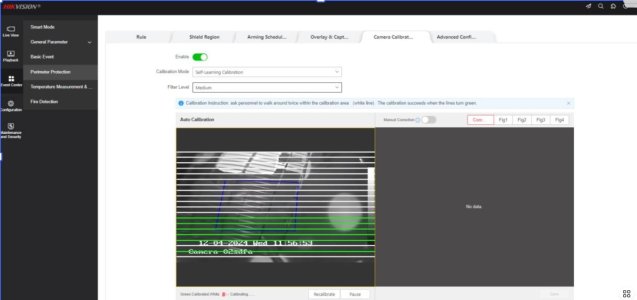
Camera Calibration (Alternative to Min/Max Size)
Instead of using size filters, you may use Camera Calibration:- After creating and drawing a rule, click Camera Calibration
- Enable Camera Calibration
- Select Self-Learning Calibration
- Set Filter Level:
- Low
- Medium (recommended starting point)
- High
- Low
- Allow people to walk back and forth at least twice under the white calibration line
- Click Pause to stop calibration